Settings and memory
Your personal settings in REM Vibe Coder - workspace look, Advanced view, memory, your own MCP servers and skills.
Open Settings under You in the sidebar. It has four sections.
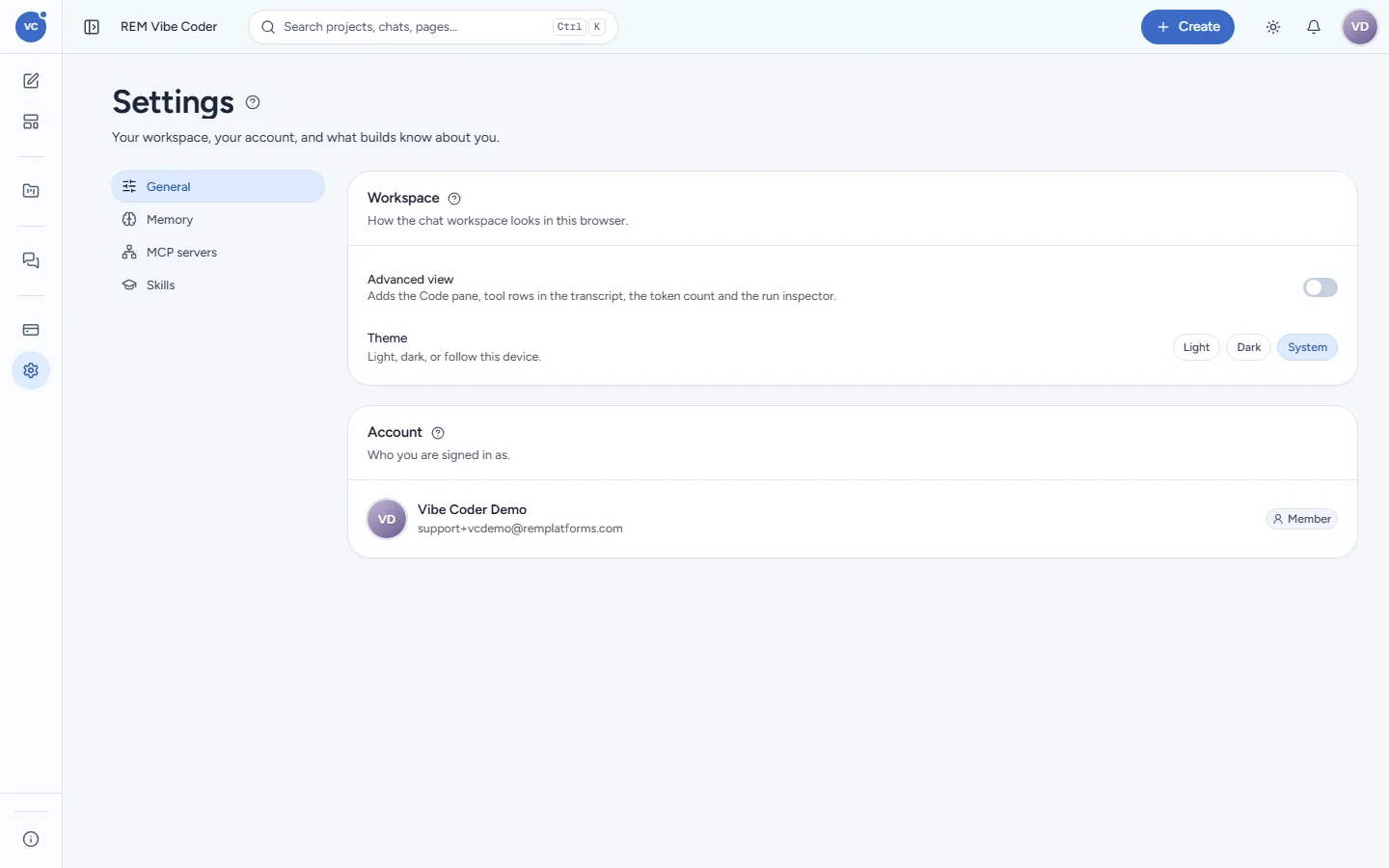
General
Workspace > Advanced view: adds the Code pane, the tool rows in the transcript, the token count and the run inspector. Off by default; useful for developers.
Theme: Light, Dark or System (follow this device). Saved in this browser.
Account: who you are signed in as (name and e-mail from your REM account). To change your name, e-mail or password, use REM Auth.
Memory
One short document (up to 8,000 characters) about you, read at the start of every build: your preferences, your company's words, your usual look. The Memory size meter shows how full it is.
Vibe Coder adds to it itself at the end of a build when it learned something durable ("prefers British spelling", "brand colour #3938b0").
Click Add to write something yourself, or remove a line you no longer want.
Each project also has its own memory (what the app is and the decisions made), shown from the chat header's memory button.
Memory is private to you.
MCP servers
Your own MCP servers (tool servers: your CRM, your ticket system, an internal API) that builds may use. You add them, sign in to them and mark tools read-only in REM CloudHub; Vibe Coder lists them here and calls them as you. A tool that changes something asks you first with a permission card.
Skills
Your own skills: written instructions every build can read ("how we name database tables", "our invoice format"). You write them in REM CloudHub; Vibe Coder makes them available to every build, read-only.
Last updated 18 Nov 2026