Questions and the plan
The plan card REM Vibe Coder shows before every build, Auto versus the Plan chip, editing and approving a plan, and the cards that pause a build to ask you.
Vibe Coder never starts writing code without a plan, and the plan is always shown to you. It comes from one quick, inexpensive step before any building starts.
The plan card
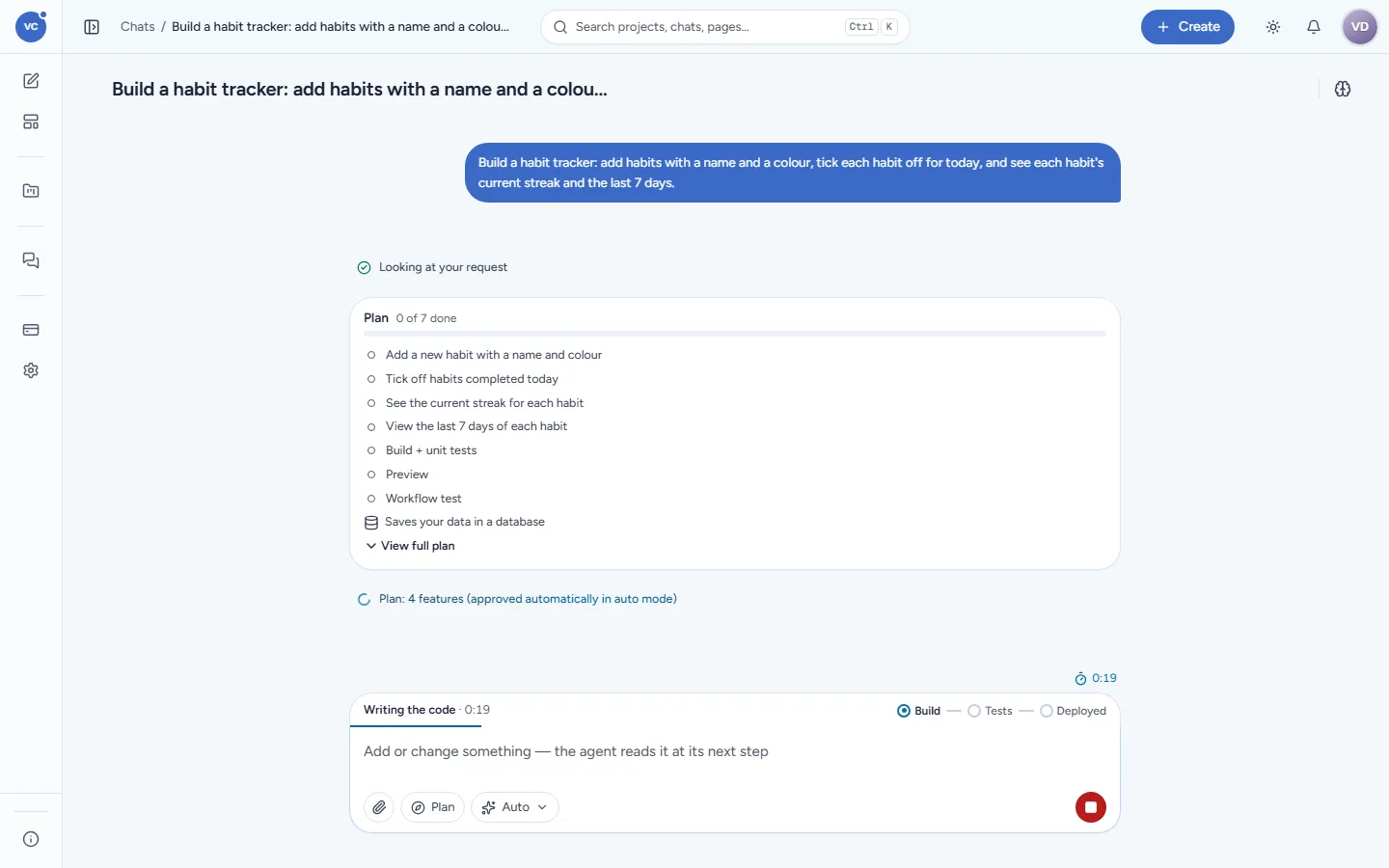
The plan card lists, in your words and without technical names:
the features of this build (two to six for a first build, at most eight), for example Add a new habit with a name and colour, Tick off habits completed today, See the current streak for each habit, View the last 7 days of each habit;
the system's own steps, ticked as they finish: Build + unit tests, Preview, Workflow test, and Look unchanged once the app's themed look has been checked;
Saves your data in a database when the app keeps data (the database is then created for you at deploy);
a counter (0 of 7 done) and View full plan, which opens the detailed plan: steps, the data the app keeps, and risks.
Auto and the Plan chip
What happens | |
|---|---|
Auto (default) | The plan is shown and approved automatically: Plan: 4 features (approved automatically in auto mode). Building starts at once. |
Plan chip on | The build stops at the plan: Plan ready: N features. Edit it or ask for changes, then approve. Nothing is built until you approve. |
Turn the Plan chip on in the composer before you send. Vibe Coder remembers it per chat; on Home it carries over to the new chat.
Edit and approve a plan (Plan chip on)
Click a feature to change its words, remove it, or add a line (up to 12 lines of 200 characters).
Or type in the composer what to change ("drop the export, add a weekly summary") to get a new plan.
Click Approve & build. The plan is built exactly as it stands on the card.
After approval the build starts from a clean slate: only your request and the approved plan (and, on a follow-up, a short summary of the project) go to the builder, never the whole conversation. This keeps builds fast and their cost low.
Model choice
The model picker next to the Plan chip says Auto: Vibe Coder uses a strong model to build and lighter ones for planning and talk. You may pick one of the offered models (for example Claude Sonnet 5) for the next messages; the choice is remembered in this browser.
Cards that pause a build
A build can stop on a card and wait for you. The build then shows Needs you in the sidebar.
Card | When | Your answers |
|---|---|---|
A question | A choice that really changes what gets built ("Should guests book without an account?") | One of up to six options, or your own words |
Permission ("Change the live app?", "Use or change your data?", "Remove something?", "Use a connected service?") | The build wants to do something sensitive in your name: delete, send, schedule, change a live system | Allow once, Always allow (this chat), No |
Confirm | A change in REM CloudHub that REM CloudHub asks you to confirm (registering scheduled jobs, for example); it shows exactly what will be done | Allow once, Always allow (this chat), No |
Which version? | A new chat about an app that is already deployed and has changed since | Continue from the last version or Start from the original version |
Parts of every build never ask: creating your app's database, saving its code to its own work branch, and creating or changing a solution that is yours.
You can also type while a build runs: your message is queued and read before the next step (see Change your app).
Last updated 18 Nov 2026