Signing in and out
Sign in on one screen, use your second factor, reset a forgotten password, what lock-out means, and signing out of every app.
Sign in
In any REM app choose Sign in. You arrive at
auth.remplatforms.com/login, showing the app's name.Type your Email or Username and Password on the one screen, and choose Log in.
If you have two-step verification, enter the code from your authenticator app, touch your security key, or use a recovery code.
You are returned to the app, signed in.
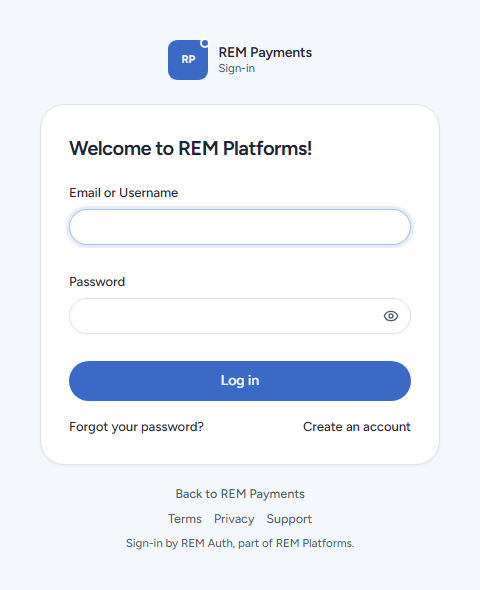
A wrong password or a refusal stays on REM Auth's page, with a Back to link to the app (for example "Back to REM Payments"). If the app is not open to your teams, REM Auth says so instead of letting you in.
Forgot password
On the sign-in screen choose Forgot your password?
On Reset your password, type your e-mail or username and choose Continue. The answer is always the same ("if an account uses that address, we sent a link"), whether or not the address has an account.
Open the mail Reset your password and click the link within 30 minutes. It works once; at most 5 links are sent per 15 minutes.
Choose a new password and type it again.
You are signed in, and every other session is ended, so anyone who knew the old password is signed out. You get a mail that your password was changed.
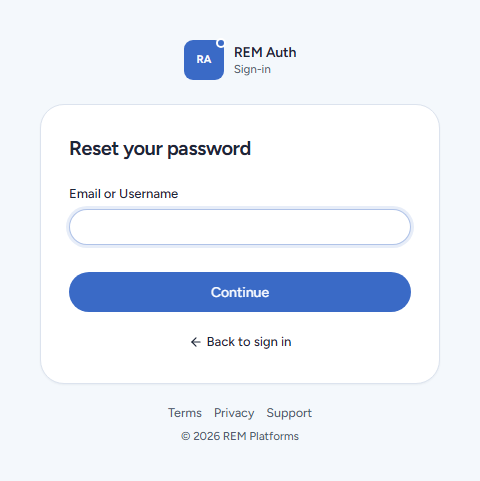
The reset pages link Back to sign in. A link that is spent or too old shows "This link has expired or was already used" and lets you ask for a new one. Completing a reset also proves your e-mail address.
Locked out
Wrong passwords count against both your address and your username. After about five failures in a row, sign-in is refused for a while; a successful sign-in counts back up, and the count is forgotten after a day. An administrator can clear it at once (see Sign-in settings). Reset your password if you are not sure of it rather than guessing.
Sign out
Use Sign out in the app's account menu. The app sends you to REM Auth's sign-out (/logout?app=<app>), which ends your REM Auth session and returns you to the app. Because the REM Auth session is shared, you are signed out of the other REM apps in that browser at their next check. To sign out a different device, use Where you are signed in on your account page.
Last updated 18 Nov 2026