Getting started
Create your REM account, confirm your e-mail address, and sign in to your first REM app.
Create your account
You can start from any REM app (its Sign in button sends you to REM Auth) or directly at auth.remplatforms.com/signup. The screens show the name of the app you came from.
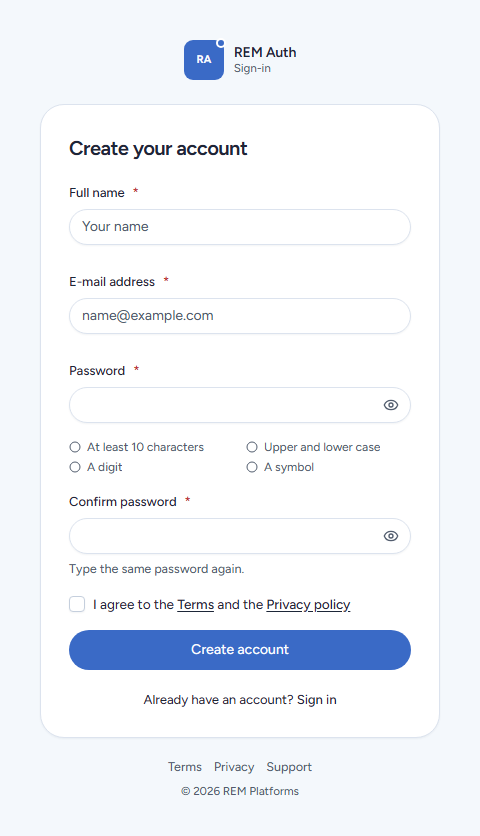
Choose Create an account on the sign-in screen.
Enter your Full name, your E-mail address and a Password, then the password again under Confirm password. The password needs at least 10 characters with upper and lower case letters, a digit and a symbol, and must not be easy to guess. The eye button shows what you typed; a hint appears when Caps Lock is on.
Tick "I agree to the Terms and the Privacy policy" and choose Create account.
REM Auth answers "check your e-mail". Open the mail Confirm your e-mail address from REM Auth (
support@remplatforms.com) and click the link within 24 hours. The link works once.Opening the link confirms the address and signs you in, and you are returned to the app you came from.
Until you open the link the account cannot sign in. That is on purpose: REM apps only trust addresses that are proven.
Already have an account? The screen links to it: "Already have an account? Sign in".
Rules that keep accounts real
One account per mailbox.
name+shop@gmail.com,n.a.m.e@gmail.comandname@googlemail.comare the same Gmail mailbox, so they count as one account (the same holds for plus-addresses at Outlook, iCloud, Proton, Zoho and Yahoo).No throwaway addresses. Temporary-mail domains are refused with "Please use a permanent e-mail address."
No hints about other people. If an account already uses the address, the screen still says "check your e-mail", and the owner of that address gets a mail You already have an account with links to sign in or reset the password. Nobody can find out who has an account by trying addresses.
Your first sign-in to an app
Open the app (for example rempayments.com) and choose Sign in. If you are already signed in to REM Auth in this browser, you are let in at once without typing anything. Whether you may use an app at all is decided by your teams (see Sessions and your access).
Last updated 18 Nov 2026